Account security
Your account opens every profile you have, so protect it like your e-mail. These settings are on the website under Dashboard → Settings.
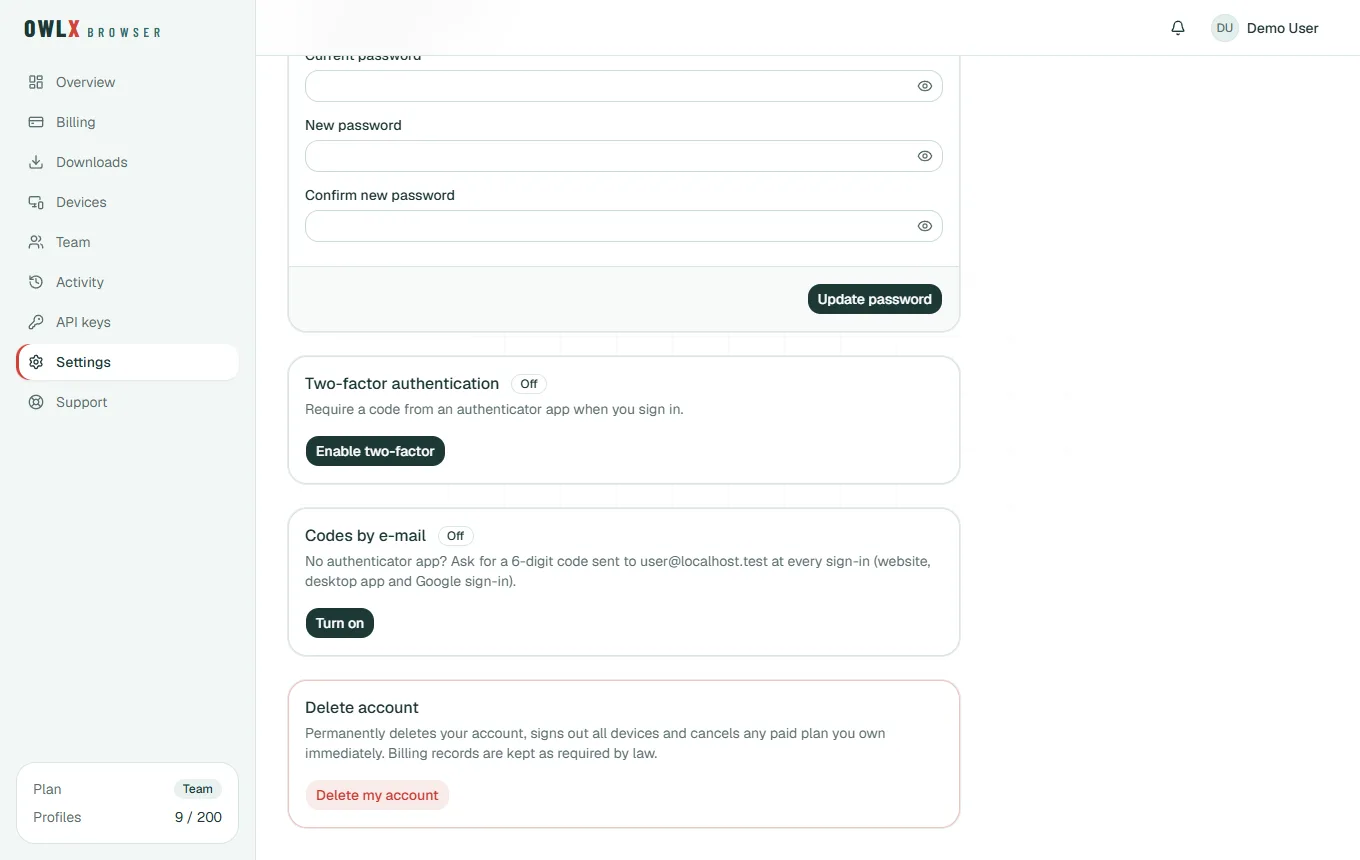
Two-factor sign-in
A second step after the password, so that a stolen password alone can't open your account. Choose one:
- Authenticator app (recommended): scan the QR code with an app such as Google Authenticator, 1Password or Aegis, then enter its 6-digit code. Keep the recovery codes somewhere safe: each one works once if you lose your phone.
- Codes by e-mail: no app needed. At every sign-in we e-mail you a 6-digit code that works once, for 10 minutes. Turning it on or off asks for a code from your inbox first, so you know the e-mails arrive.
The second step is asked everywhere you sign in: the website, the desktop app, and also after Sign in with Google.
Confirming sensitive actions
With two-factor sign-in on, deleting your account and creating an API key also ask for a code (from your app, or one we e-mail you when you click Send code). An API key can open every profile you can, so it gets the same protection as your password.
Sign-in alerts and history
- Sign-in history lists every sign-in to your account — when, where, with what and whether it worked.
- Alert e-mails tell you about a sign-in from a new place and about several failed attempts in a row. They also show up in the bell at the top of the dashboard and of the app.
- After repeated wrong passwords, signing in from the desktop app is paused for a while; Sign in with browser keeps working for you.
Devices
Dashboard → Devices lists the computers signed in to your account with the app. Sign out ends one at once; its profiles stay safe on the server (encrypted) and on that computer's disk.
The app lock
In the app, Settings → App lock asks for a PIN after some minutes without use, so nobody can open your profiles from your unlocked computer. The PIN is kept in the system's protected storage.
Your data and e-mails
- Export my data (Dashboard → Settings) downloads one JSON file with what we keep about you: account, devices, sign-ins, activity, support messages, and the profiles, proxies and flows of the workspaces you own. Passwords, keys, 2FA secrets and proxy passwords are left out. It asks for your password and second factor first.
- E-mails (same page): the language of the getting-started tips (English or Bangla) and whether you get them at all — three short e-mails in your first week. Each one also has a one-click Stop these e-mails link. Security and billing e-mails still arrive.
- Delete account removes your name and e-mail address, signs out your computers and cancels paid plans of workspaces you own. What happens exactly: Your data: export and delete.
Good habits
- Use a long, unique password, or Google sign-in plus an authenticator app.
- Never send passwords, 2FA codes, recovery codes or proxy logins to anyone — our support never asks for them.
- If an alert e-mail shows a sign-in you don't recognize: change the password, sign out the devices you don't know, and turn on two-factor sign-in.