Batch create, Excel import and bulk edits
Three ways to work with many profiles at once.
Batch create
Profiles → Batch create makes up to your plan's limit of profiles in one go, each with its own fingerprint.
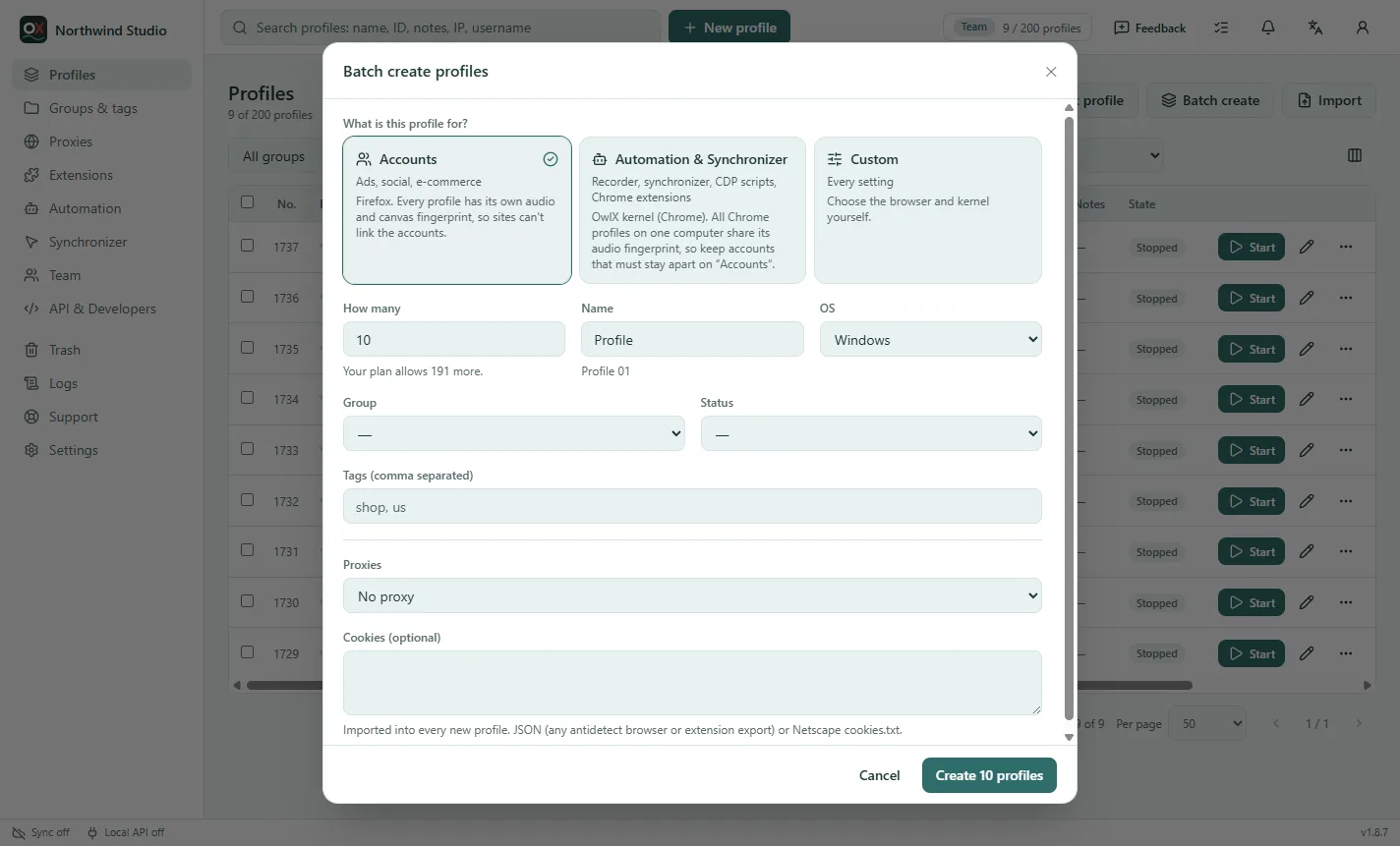
- What they're for: Accounts (Firefox, each its own audio fingerprint), Automation & Synchronizer (Chrome) or Custom (choose the browser), as for a single profile (Profiles).
- Name: profiles are numbered after it — Profile 01, Profile 02…
- OS, group, status, tags: the same for every new profile.
- Proxies: none; saved proxies, one per profile (in turn) — with fewer proxies than profiles they are reused in order; or paste new proxies, one per profile (they are saved to your proxies first).
- Cookies (optional): imported into every new profile — JSON or Netscape
cookies.txt.
Import from Excel or CSV
Profiles → Import reads an Excel file (.xlsx, .xls, .ods) or CSV: one profile per row. Google Sheets works (File → Download → CSV), and so do exports from other antidetect browsers.
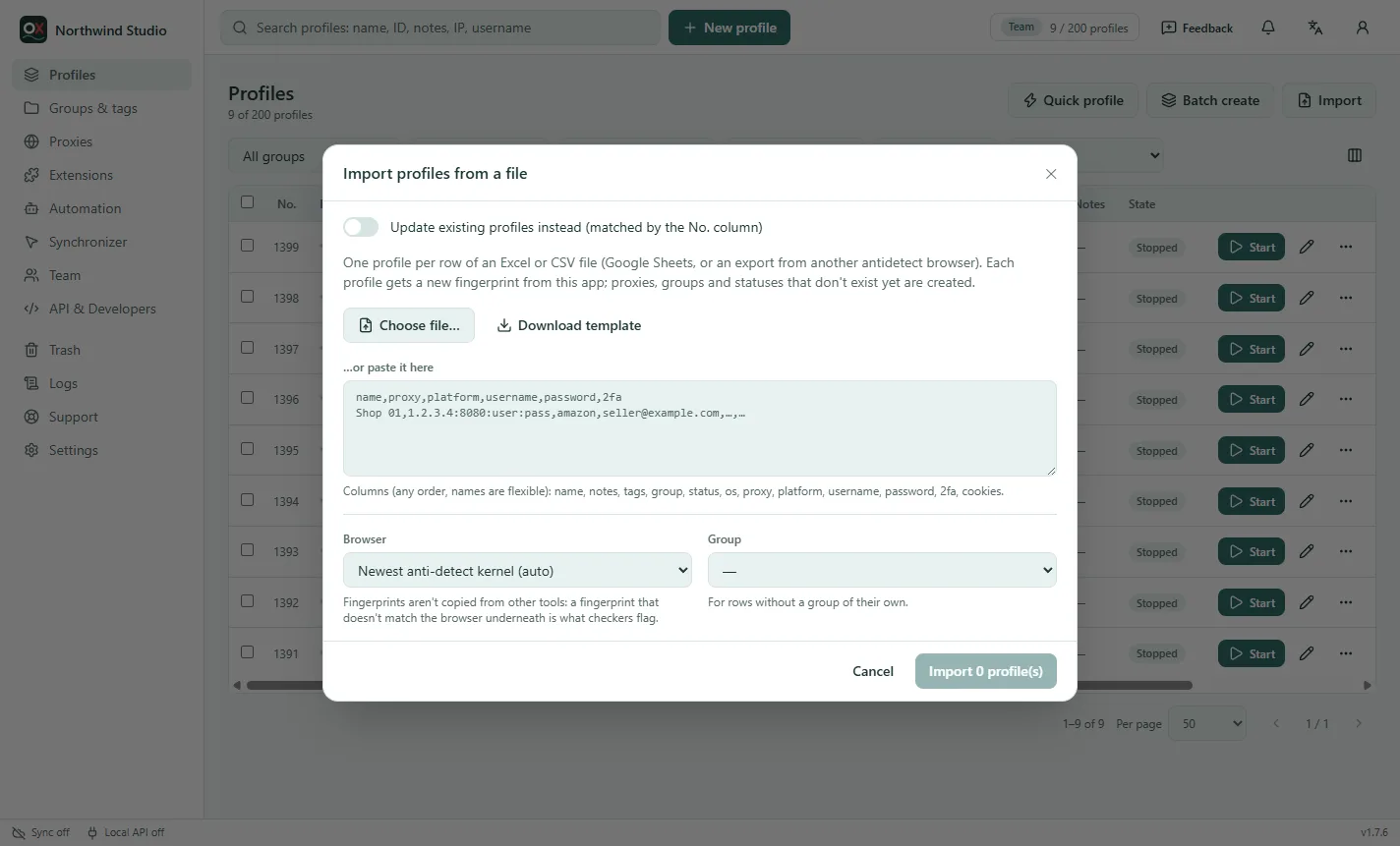
Columns can be in any order, and common names from other tools are understood:
| Column | What it holds |
|---|---|
| name | Profile name (if empty, the username is used) |
| notes, tags | Tags separated by commas |
| group, status | Created if they don't exist yet |
| os | windows, macos, linux or android (empty = this computer) |
| proxy | host:port:user:pass, user:pass@host:port or socks5://… |
| platform | A site such as facebook, amazon-seller or google, or any web address |
| username, password, 2fa | The account's login; the password and 2FA secret stay on this computer |
| cookies | JSON or Netscape cookies; the profile starts logged in |
Download template gives you a file with every column. The preview shows which rows will be imported and why others can't be, before anything is created. Every imported profile gets a new fingerprint from the app: a fingerprint copied from another tool wouldn't match the browser underneath, and that mismatch is exactly what checkers look for.
From another antidetect browser's export
The same Import also reads the files other antidetect browsers export, without signing in to them:
- a spreadsheet with their column names (for example
remark,proxy type,host,port,login,fakey,folder); instruction rows such as "Required / Optional" are skipped; - a JSON list of profiles, as their export button or API returns it, with nested proxy settings and cookies;
- a text file with one profile per block:
key=valuelines, blocks separated by a line of*****.
Unpack a ZIP export first and load the file inside. Proxies given in parts (type, host, port, login, password) are put together; SOCKS4 and a provider's built-in proxy can't be imported and are named in the preview. Cookie columns can hold JSON, Netscape cookies.txt or name=value pairs. The full walk-through: Moving from another antidetect browser.
Update profiles from a file
Tick Update existing profiles instead to change profiles rather than create them. Each row changes the profile with that No.: name, notes, tags, group, status, proxy (write none to remove it), account, password or 2FA, cookies, or OS (which gives it a new fingerprint). Empty cells change nothing. The easy way: export the profiles, edit the file, load it here.
Export
Select profiles and click Export to save them to Excel or CSV. Passwords, 2FA secrets, proxy passwords and cookies are included only when you tick them. Such a file lets anyone log in to those accounts: keep it safe and delete it when you're done.
Bulk edits
Tick profiles in the list (the box at the top selects the whole page). A bar appears:
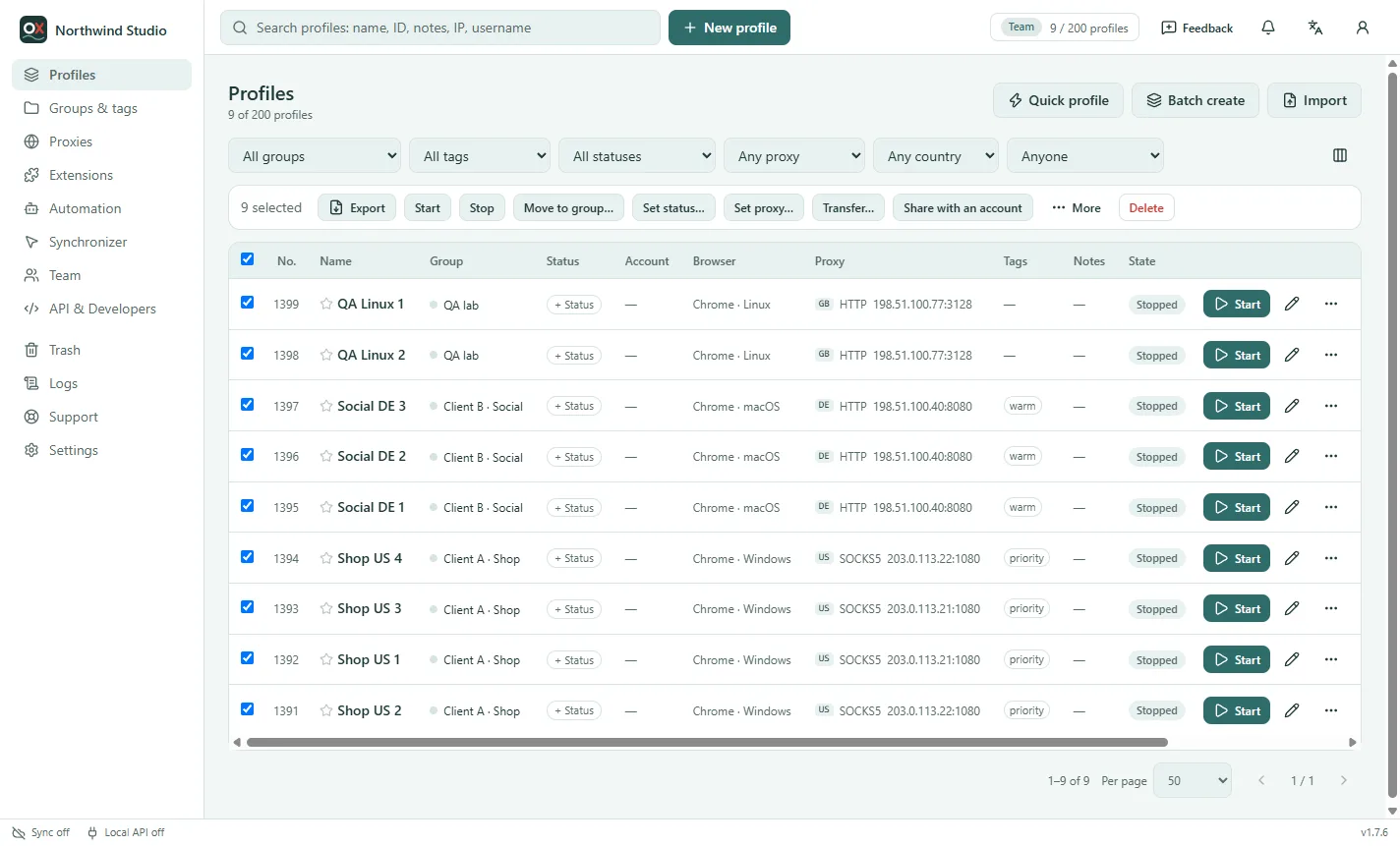
- Start / Stop them together.
- Move to group, Set status.
- Set proxy: one proxy for all, or spread your saved proxies over the selected profiles, one each.
- More: add or remove tags, set notes, browser preferences, new fingerprints, clear the cache, make copies.
- Transfer…, Share with an account, Export, Delete.
Bulk actions and the import are part of the paid plans; the app shows a lock where your plan doesn't include them.
Task center
Everything that works on many profiles at once runs in the background: starting or stopping many profiles, the bulk edits above, batch create, import and export. The Tasks button in the top bar (a list with ticks) shows each job with its progress; a number on it counts the jobs still running.
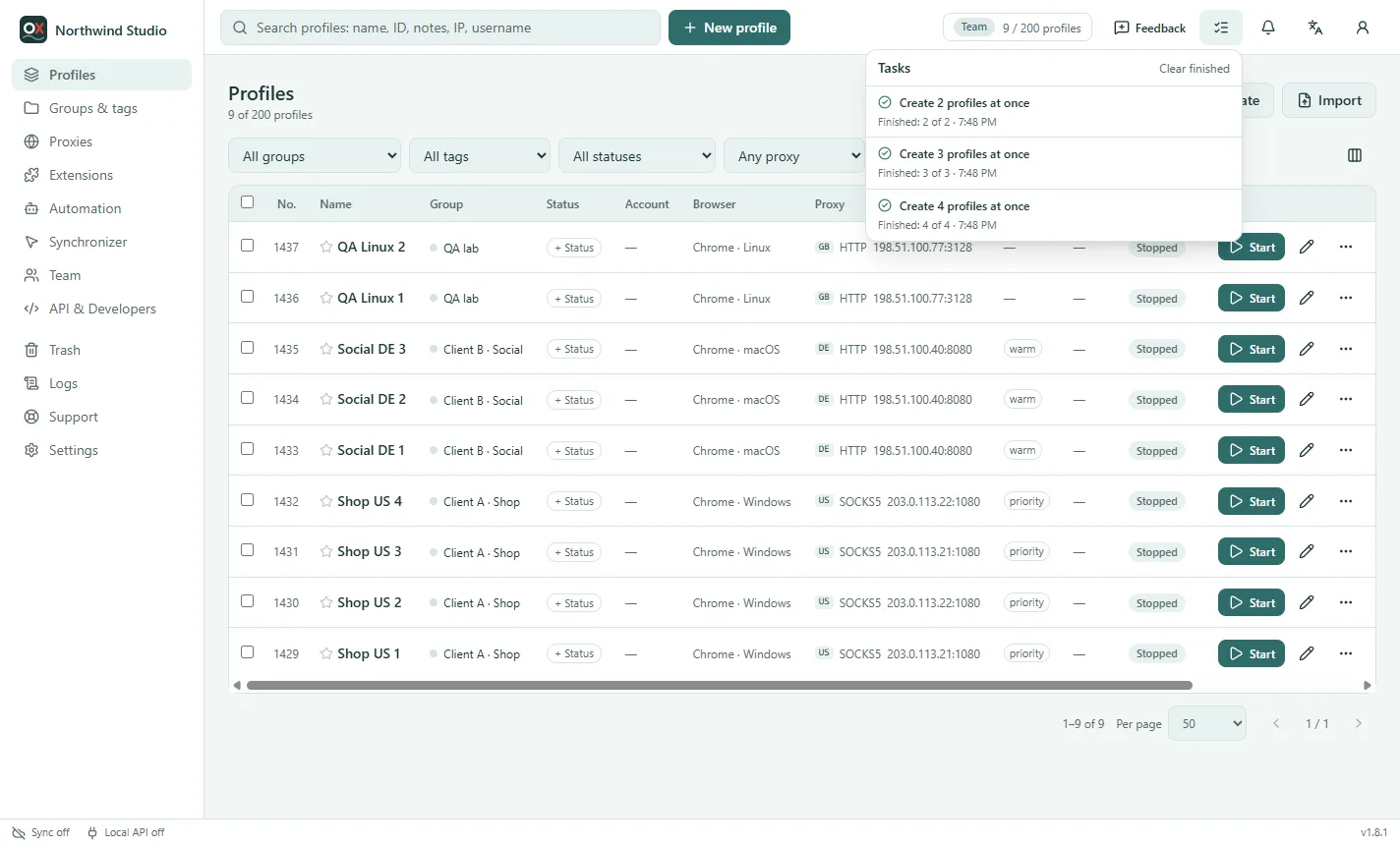
- Cancel stops a job before its next profile (starting, stopping, new fingerprints, clearing caches, copies). What was already done stays done.
- N failed opens the reasons, for example a proxy that refused the connection.
- Automation runs of the last hour are listed too, with Stop; Open runs goes to Automation → Runs.
- Clear finished empties the list. It only covers this session: closing the app starts a new list.