Fingerprint settings
A fingerprint is everything a website can read about the browser and the computer under it: the operating system, the screen, the graphics card, the fonts, the time zone and dozens of smaller signals. Sites compare these signals with each other. A profile is safe when they agree, not when they are random.
That is why the defaults are made for you: each new profile gets a real-world device for its OS, and Generate new fingerprint gives it another one. Change single values only when you know why.
Where it happens
With both browsers the browser itself presents the profile, in every tab, frame and worker: canvas, screen, CPU, memory, WebGL, the User-Agent, time zone, language and WebRTC (the anti-detect kernel adds WebGPU and client hints). No scripts are added to pages and the browser starts with nothing attached, so there is nothing for a page to find. The editor marks each setting with what the chosen browser supports.
New profiles start from what they're for (version 1.8.7): Accounts makes a Firefox profile, and each Firefox profile has its own audio fingerprint. Automation & Synchronizer makes a Chrome profile; Chrome profiles, the anti-detect kernel included, all show this computer's one audio fingerprint, so sites can use it to link them. Use it where an account needs Chrome extensions or Chrome automation, and keep accounts that must never be linked on Accounts (Profiles).
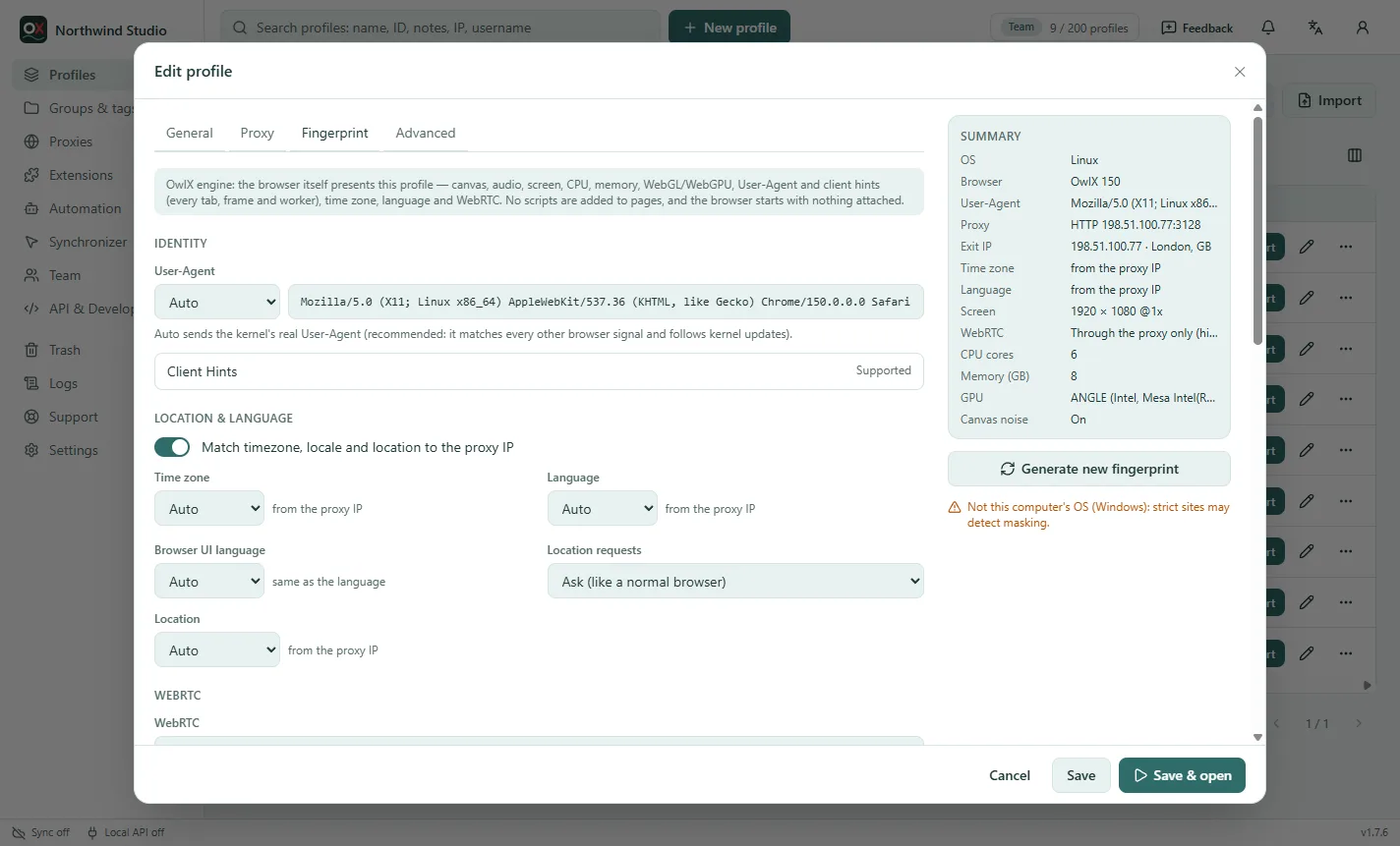
Identity
- User-Agent: Auto sends the kernel's real User-Agent. Keep it: it matches every other browser signal and follows kernel updates. A custom User-Agent that differs from the kernel can be detected, because client hints and browser features still show the real browser.
- Client Hints are sent to match the User-Agent.
Location and language
Match timezone, locale and location to the proxy IP is on by default: when the profile starts, the time zone, the browser's language and the location follow the proxy's exit IP. Each one can be set by hand instead. Location requests decides what happens when a site asks for the location: ask (like a normal browser), allow or block.
A browser whose time zone doesn't fit its IP is one of the most common reasons accounts get flagged, so leave this on unless a profile really needs something else.
WebRTC
WebRTC lets pages make direct connections, which can reveal an IP address.
| Setting | What websites see |
|---|---|
| Through the proxy only (default) | No address of yours. Firefox profiles show the proxy's IP. |
| Through the proxy, showing an address you choose | The public IPv4 or IPv6 address you enter; nothing leaves the proxy. OwlX kernel and Firefox only (standard Chrome stays through the proxy only). Strict checkers notice an address that differs from the proxy's exit IP: use it only when a site needs a particular one. |
| Disabled | WebRTC doesn't work at all (some sites notice that) |
| Real | Your own IP — even through a proxy. Use only on a profile without a proxy. |
The leak check tests this for you. More background: WebRTC settings explained.
Hardware and screen
- Screen, CPU cores and memory come from the device template and stay within realistic values for it.
- WebGL vendor / renderer: This computer's GPU is recommended. Another GPU name is possible, but the pictures are still drawn by your GPU, which strict checkers can notice; the editor warns about it.
- WebGPU names the same GPU as WebGL, or is off (as on a computer without a supported GPU).
Noise
- Canvas noise (on by default with the anti-detect kernel) gives every profile its own canvas picture, different on each site and stable over time. It is done inside the browser, so checkers don't flag it.
- WebGL image and ClientRects noise work the same way for those signals.
- Audio: each Firefox profile has its own audio fingerprint. The Chrome engines can't change it: every Chrome profile on this computer shows the same one (the editor says so under the browser choice).
Fonts, voices and media devices
- Fonts: each profile shows its own font set — the base fonts of its OS plus add-on groups chosen per profile. Only fonts installed on this computer can be drawn, as in any Chrome.
- Speech voices: the voices of the profile's language, as that OS lists them.
- Media devices: how many microphones, speakers and cameras pages see (Firefox profiles).
- Do Not Track: not sent by default, like most browsers.
Advanced tab
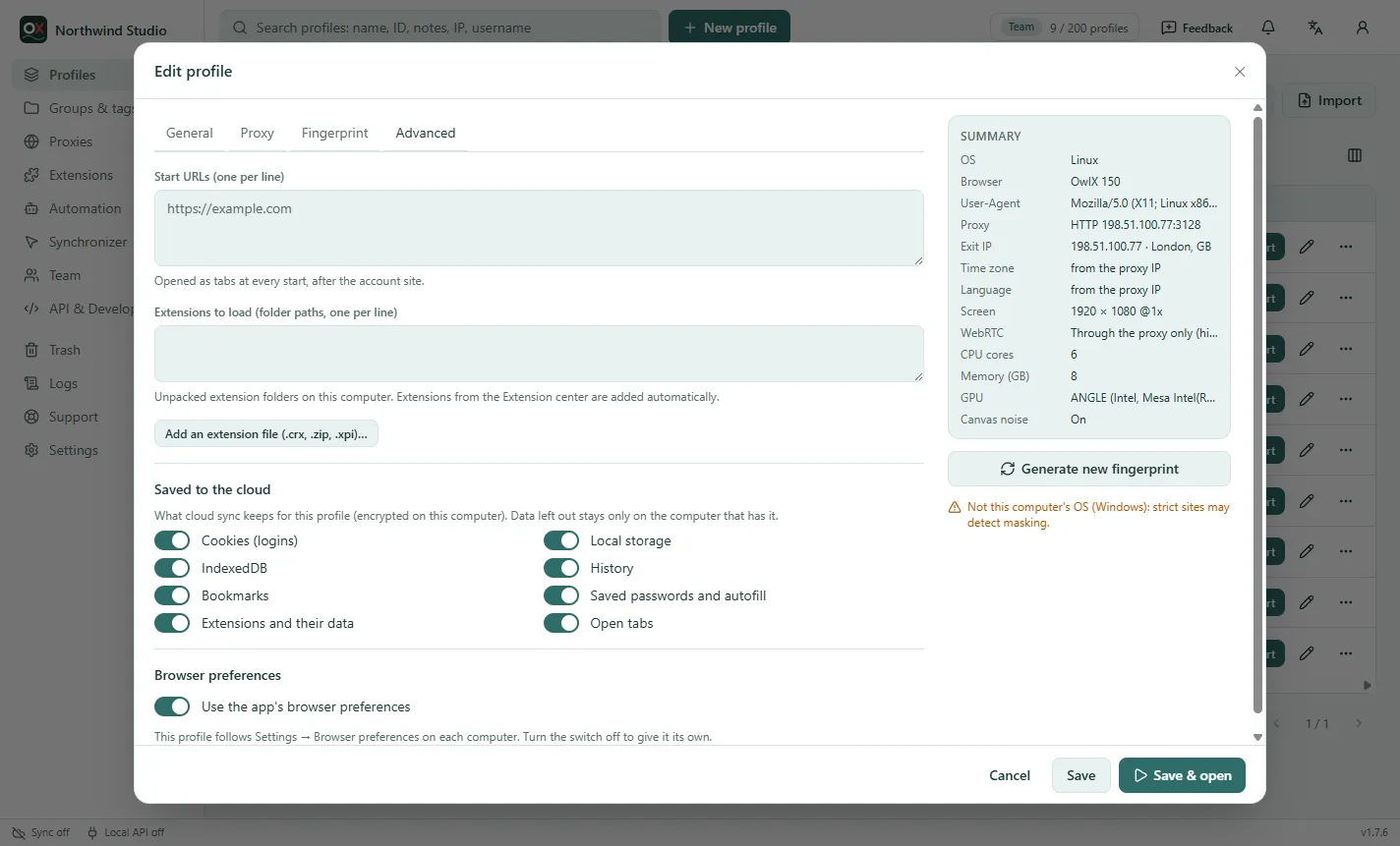
- Start URLs: opened as tabs at every start, after the account's site.
- Extensions to load: unpacked extension folders on this computer (team extensions are added automatically: Extensions).
- Saved to the cloud: what cloud sync keeps for this profile — cookies, local storage, IndexedDB, history, bookmarks, saved passwords, extensions and open tabs. Data left out stays on the computer that has it.
- Browser preferences: a profile follows Settings → Browser preferences of each computer, or gets its own: don't load images or videos, mute sound, reopen the last tabs, clear the cache or cookies at start, a new fingerprint at every start, what to do when the proxy's IP changed, the website block or allow list, HTTPS only, DevTools, browser sign-in and translation offers, and extra launch arguments.
The summary and the warnings
The summary next to every tab shows what the profile will look like to a website. Orange notes under it point out what strict checkers can notice, for example Not this computer's OS: strict sites may detect masking. For important accounts, use profiles on your computer's own OS and the recommended values.
Check fingerprint in a profile's menu opens the profile on a page that shows what websites read from it.