Extensions and bookmarks
Add a Chrome extension or a bookmark once, and every profile gets it the next time it starts.
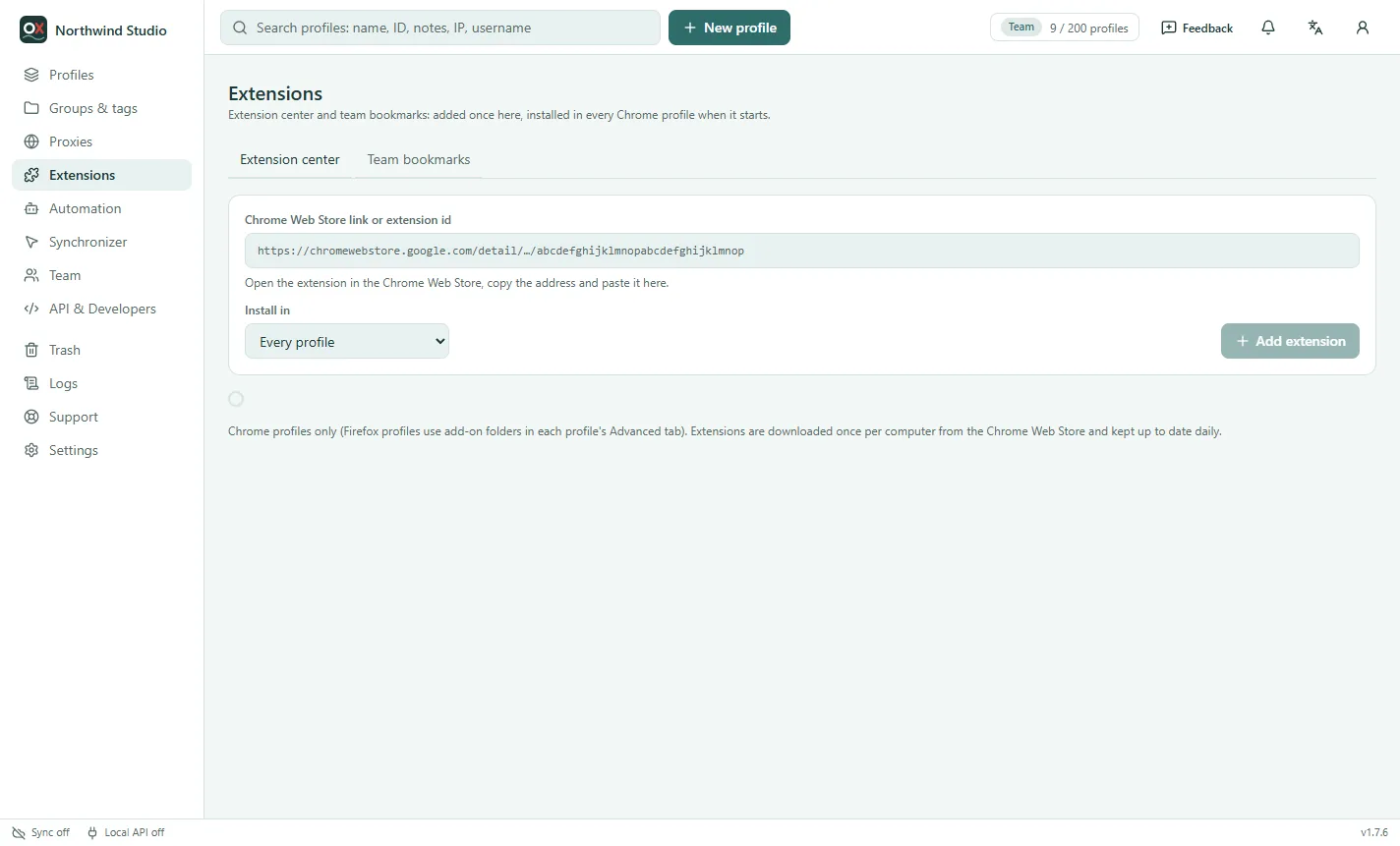
Extension center
- Open the extension in the Chrome Web Store and copy the page's address.
- In the app, go to Extensions, paste it into Chrome Web Store link or extension id and click Add extension.
- Choose where it is installed: every profile, or profiles in these groups only.
The app downloads each extension once per computer from the Chrome Web Store and keeps it up to date daily. Switch an extension off to stop installing it without removing it; removing it takes it away the next time each profile starts.
- Extensions from the center are for Chrome profiles (make them for Automation & Synchronizer). Firefox profiles load add-on folders from their own Advanced tab.
- A single profile can leave a team extension out (its editor → Advanced), and can load unpacked extension folders or
.crx,.zipand.xpifiles of its own. - Lock extensions (Browser preferences) stops people from adding extensions inside the browser: only the team's and the profile's own run.
Team bookmarks
On the Team bookmarks tab, add a title and an http(s) address for each bookmark. They appear in a "Team bookmarks" folder on the bookmarks bar of every Chrome profile; each profile's own bookmarks stay as they are.
Who can do this
Owners and managers (the "Manage team extensions and bookmarks" permission) add and remove them; everyone else sees the list and gets them installed automatically.