Proxies
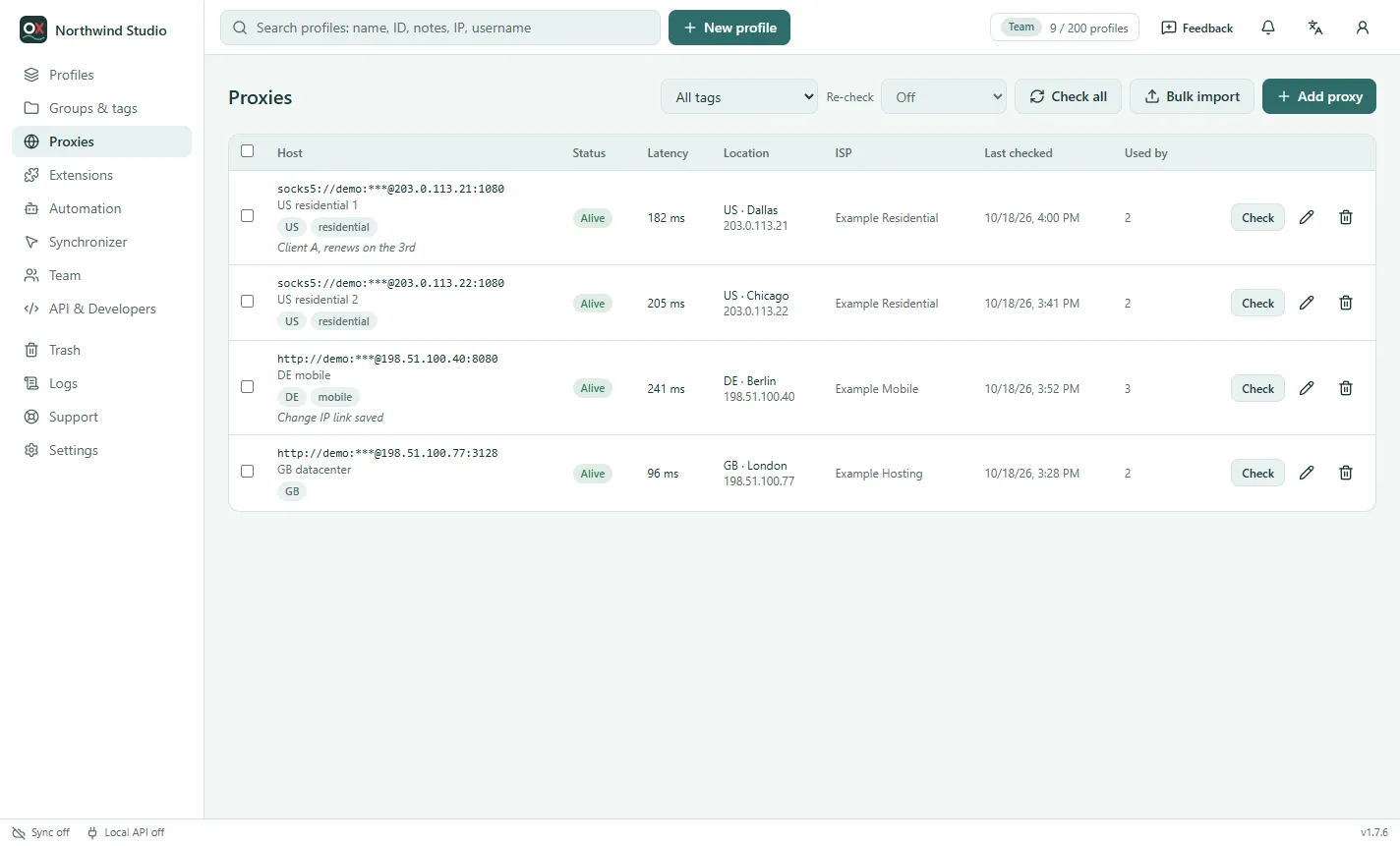
A proxy gives a profile its own IP address. Save your proxies once under Proxies and give them to profiles, or type one straight into a profile.
Supported types
HTTP, HTTPS, SOCKS5 and SSH, with an optional username and password. Passwords are stored encrypted, sent only to the desktop app that connects through them, and never written to logs. Roles without "see passwords" don't see them at all.
Add a proxy
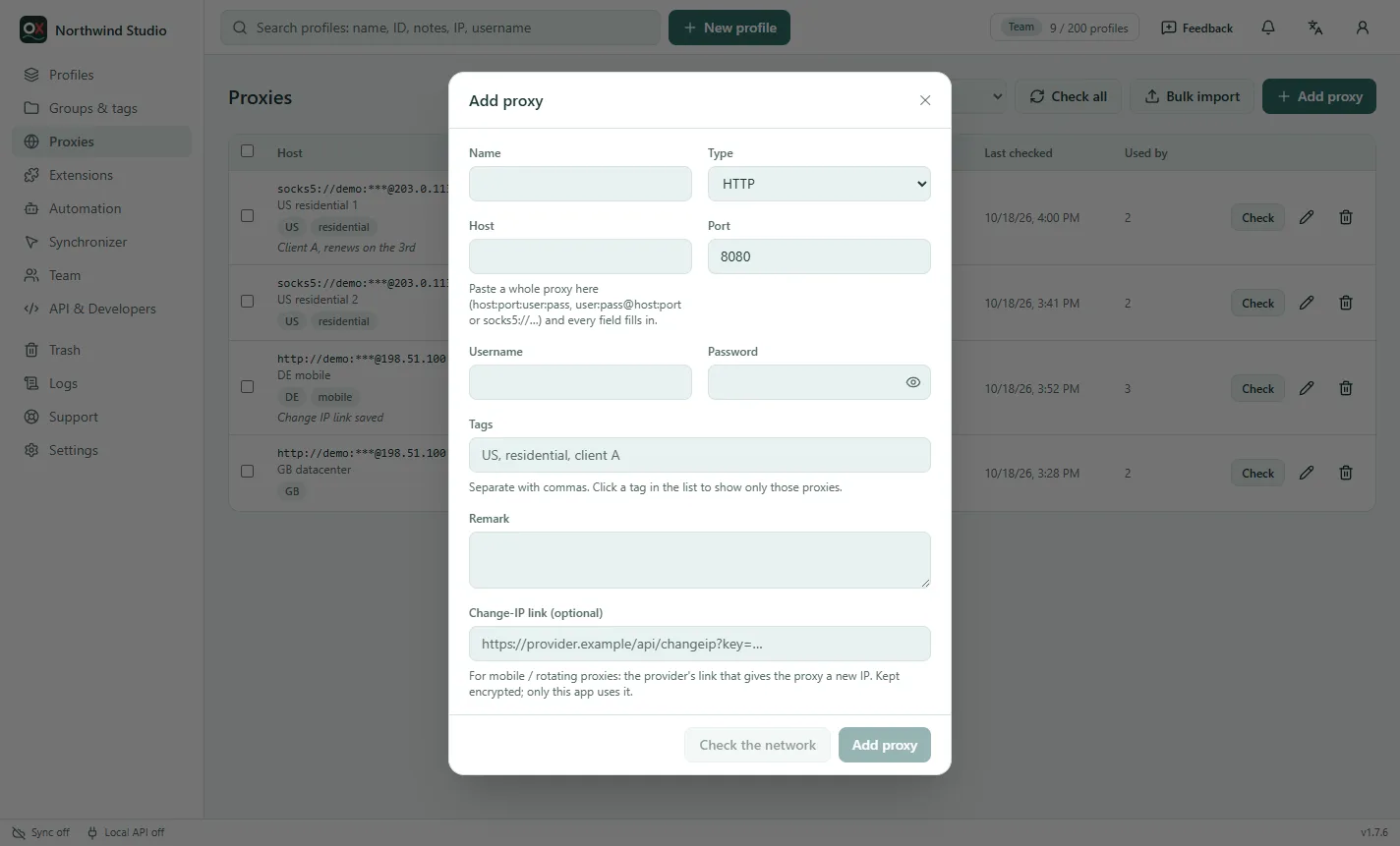
Click Add proxy. Paste the whole proxy into Host and every field fills in:
host:port
host:port:user:pass
user:pass@host:port
socks5://user:pass@host:port
http://host:port
Passwords may contain : and @. Check the network tests the proxy before you save it.
- Tags (separated by commas) group proxies by country, type or client. Click a tag in the list, or use the tag filter at the top, to show only those proxies.
- Remark: a note for your team, for example when the proxy renews.
- Change-IP link: for mobile and rotating proxies, the provider's link that gives the proxy a new IP. Change IP in the list calls it and checks the new IP.
Bulk import
Bulk import takes one proxy per line in any of the formats above, or a CSV / Excel file with the columns type, host, port, username, password, name, tags, remark, rotate_url. Lines that can't be read are listed with the reason; the rest are saved.
From a provider template
Residential and mobile proxy providers usually give you one gateway (host and port) and put the country and a sticky session inside the user name, for example customer-NAME-cc-us-sessid-a1b2c3. From a template turns that one login into as many proxies as you need, each with its own session:
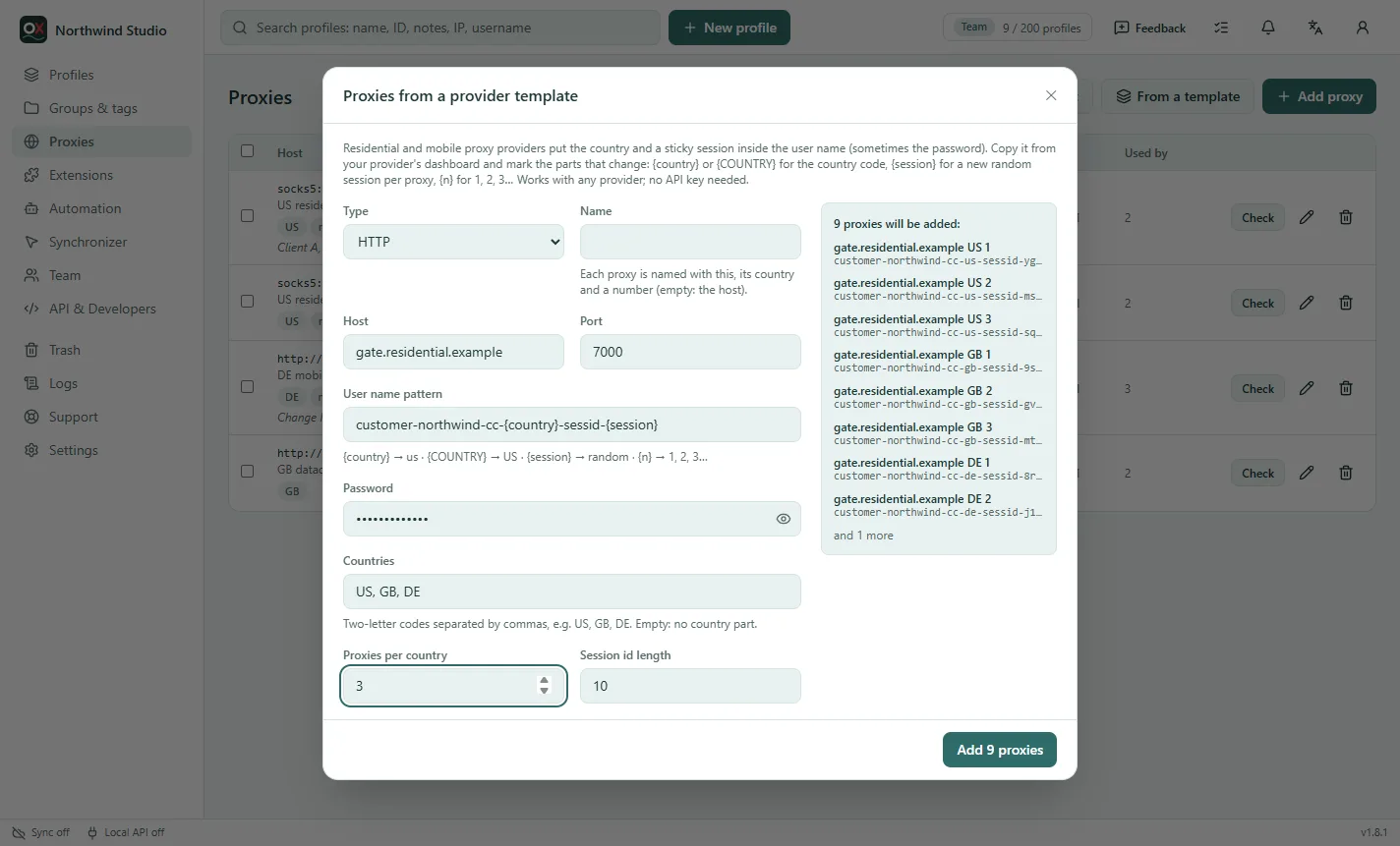
- Pick your provider if it's in the list and fill in your account details (customer ID, zone or package) — the pattern is built for you. Otherwise choose Another provider and copy the user name from your provider's dashboard (where it shows a country and a session).
- Replace the parts that change:
{country}for the country code in lower case (us),{COUNTRY}in upper case (US),{state},{city}and{asn}for a region, city or network (fill them in below the pattern),{session}for a new random session id per proxy,{n}for 1, 2, 3… The same marks work in the password, for providers that put them there. With a listed provider, Sticky session and the minutes set how long each proxy keeps its IP. - List the countries (two-letter codes, separated by commas) and how many proxies per country you want.
- Check the preview on the right, then Add. Each proxy is named after the host (or your name), its country and a number, and tagged with its country and
sticky.
It works with any provider and needs no API key: the app only fills in the user names, it doesn't talk to the provider. Up to 500 proxies at once. How long a session stays on the same IP is set by your provider (often 10–30 minutes); check its documentation.
In a profile
The profile editor's Proxy tab has No proxy, Custom and Saved proxies:
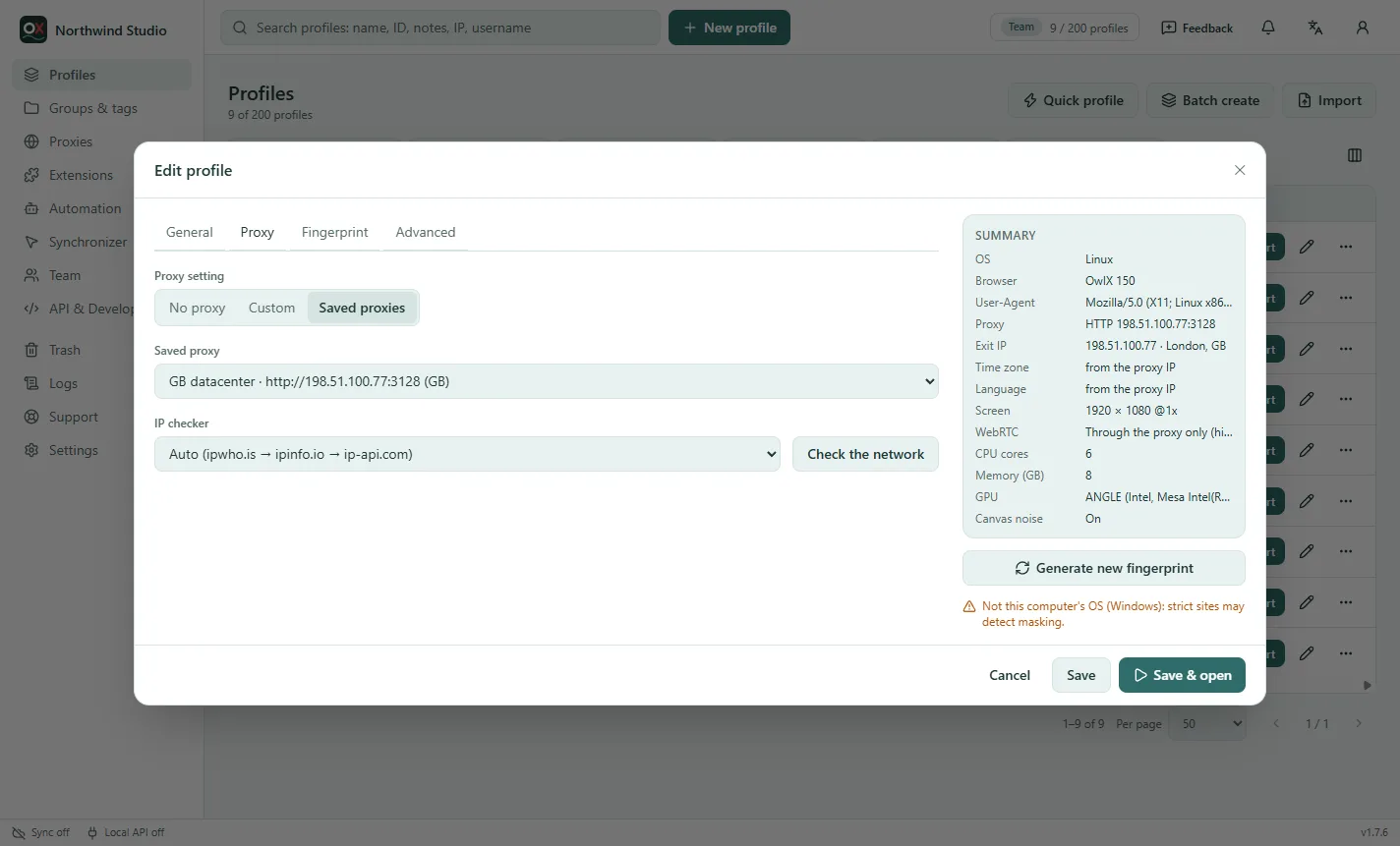
A custom proxy is added to your saved proxies when you save the profile (an identical saved proxy is reused). To give many profiles proxies at once, see Batch create and bulk edits.
The check
Check (or Check all) connects through the proxy and shows whether it is alive, its latency, its exit IP, the country, city and provider. Re-check can repeat this for every saved proxy every 15 minutes to 3 hours.
- The protocol is detected for you. A SOCKS5 proxy saved as HTTP (the default for
host:port:user:pass) is recognised from the proxy's own answer, switched to SOCKS5 and corrected in your saved proxies. - IP checker: the service that looks up the IP — ipwho.is, ipinfo.io or ip-api.com. Auto tries the next one when one doesn't answer.
- Failures say what is wrong: the proxy doesn't accept connections, it refused the username or password, or it works but the IP services didn't answer.
At every start
Each profile checks its proxy when it opens. A proxy that doesn't connect, or refuses the login, stops the start with the reason, so a profile never opens on your own connection by mistake. If the proxy's IP changed since the last start, the profile can warn you or ask first (Advanced → Browser preferences).
Geo auto-match
With Match timezone, locale and location to the proxy IP on (the default), the time zone, language and location follow the proxy's exit IP at every start (Fingerprint settings).
Is the proxy really hiding me?
Run a leak check: it confirms that websites see only the proxy — IP, WebRTC, DNS and headers.