Window synchronizer
Do the same thing in many profiles at once with one mouse and keyboard: everything you do in the main window happens in the follower windows too.
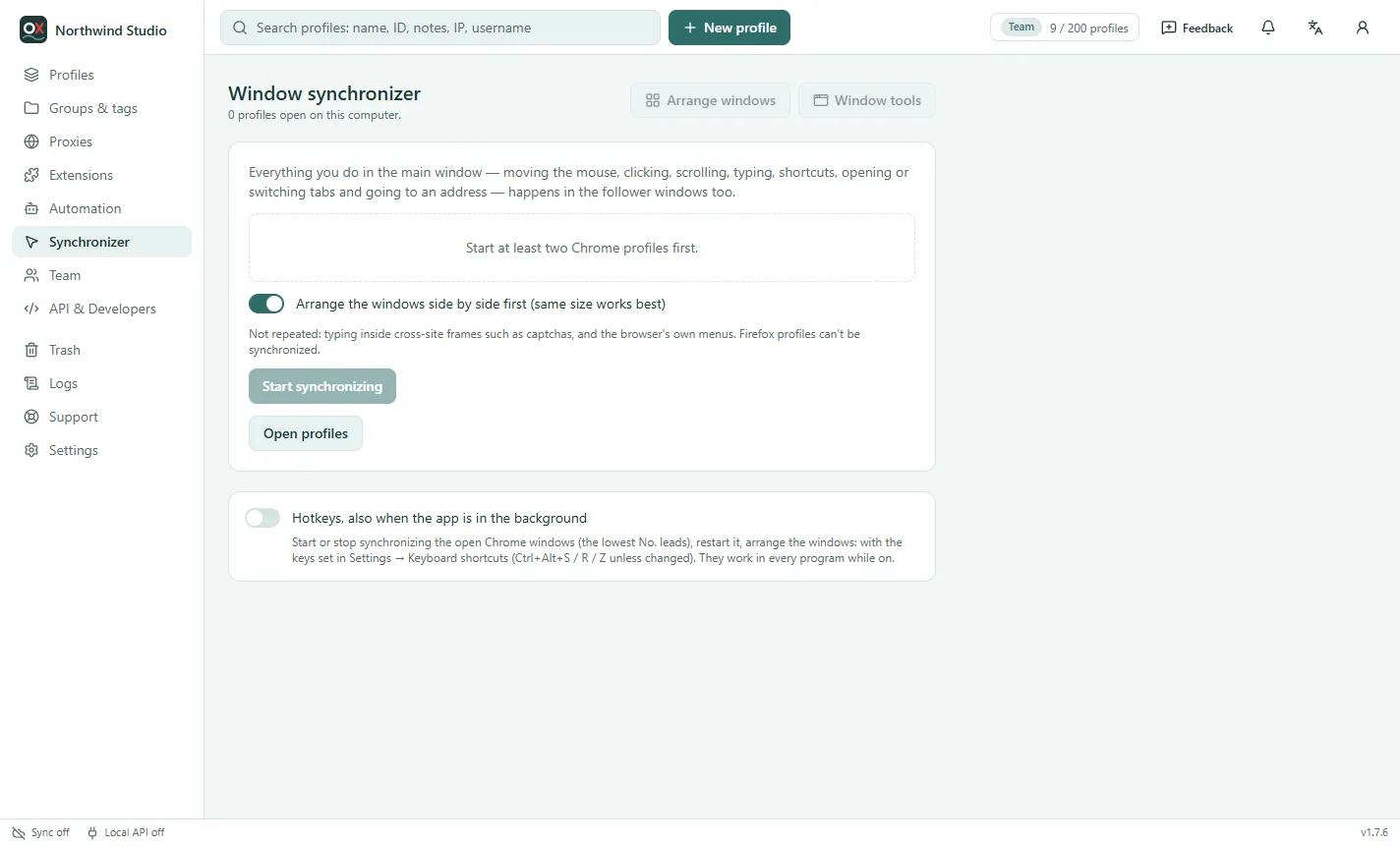
Start
- Open the Chrome profiles you want to work in (at least two).
- Go to Synchronizer (or click Synchronizer above the profile list).
- Pick the main window and tick the windows that should follow it. Leave Arrange the windows side by side first on: windows of the same size work best.
- Click Start synchronizing.
Moving the mouse, clicking, scrolling, typing and keyboard shortcuts, opening, switching and closing tabs, and going to an address are repeated in every follower. Followers get real input, the same as a person typing — not page scripts.
Pause a single follower to do something only there, then resume. Stop in the banner ends it; closing the main window ends it too.
Not repeated
- Typing inside frames from other sites, such as captchas.
- The browser's own menus and dialogs.
- Firefox profiles can't be synchronized: make the profiles you want to drive together for Automation & Synchronizer (Chrome).
Window tools
With profiles open, Window tools opens a link in every window (a new tab or the tab in front), types text into the focused field of every window (the same text, one line per window in No. order, or random digits — typed key by key), and closes them all. Arrange windows lays them out in a grid, cascade or on another screen.
Hotkeys
Optional global hotkeys start or stop synchronizing the open Chrome windows (the lowest No. leads), restart it and arrange the windows — Ctrl+Alt+S / R / Z unless you change them in Settings → Keyboard shortcuts. They work in every program while they are on, so they are off by default.
Plans
The synchronizer is part of Pro and higher. In a team it needs the "Use the Synchronizer" permission.